

EverDay
Weekly planner for iPhone
See the whole week on one board. Plan around appointments and deadlines, give important tasks a time block, and keep ideas in the Inbox until you’re ready to schedule them.
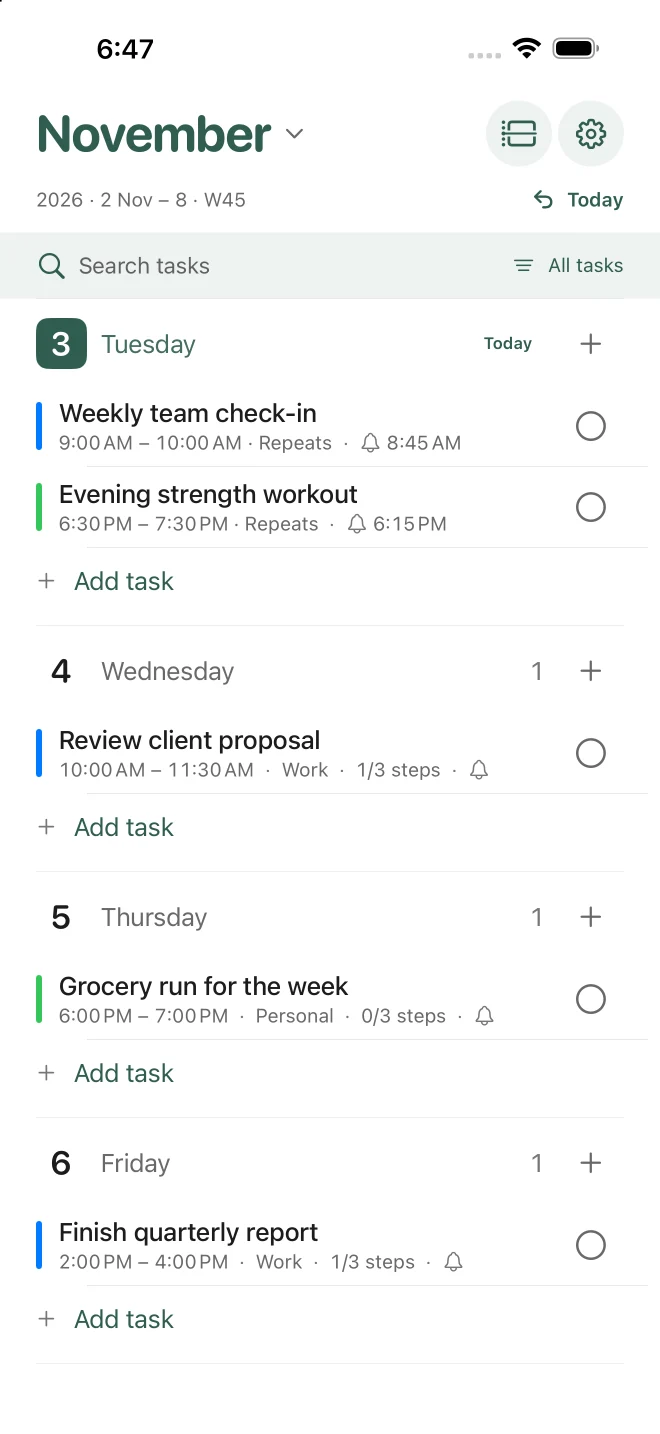
See all seven days together and move tasks as plans change.
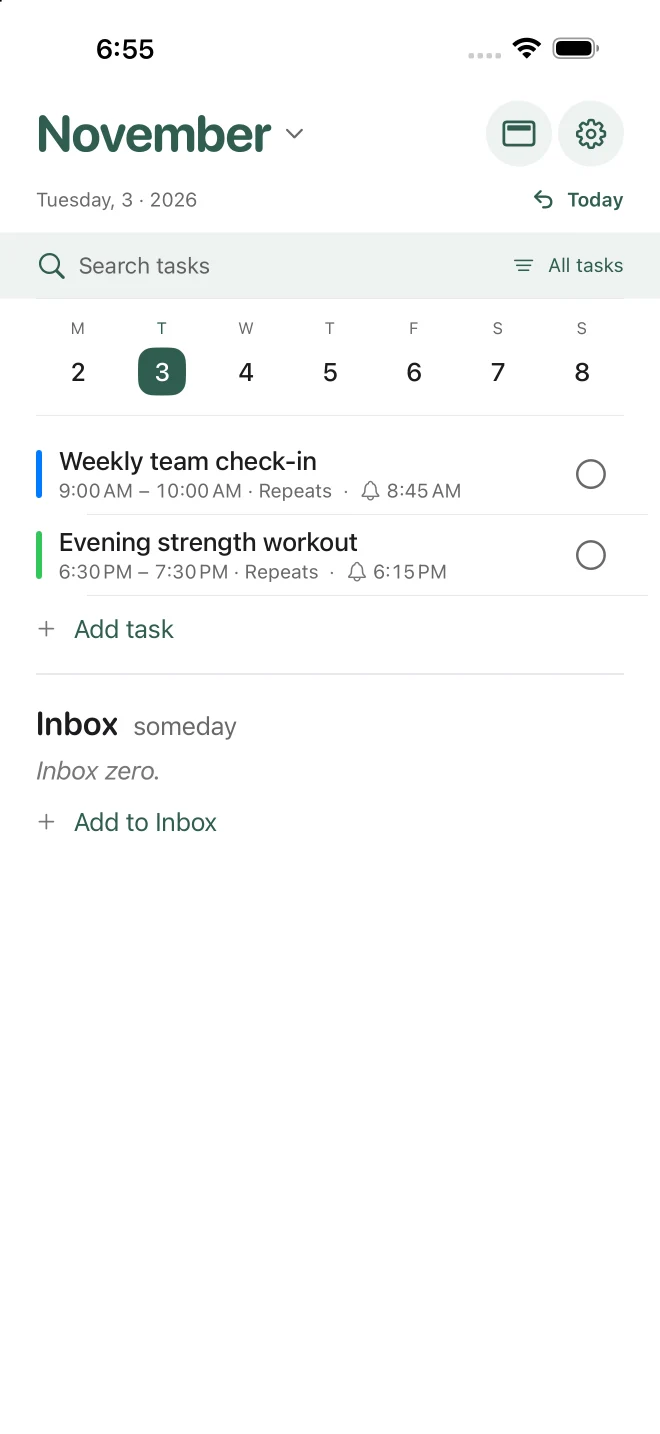
Focus on one day’s agenda and choose your three priorities.
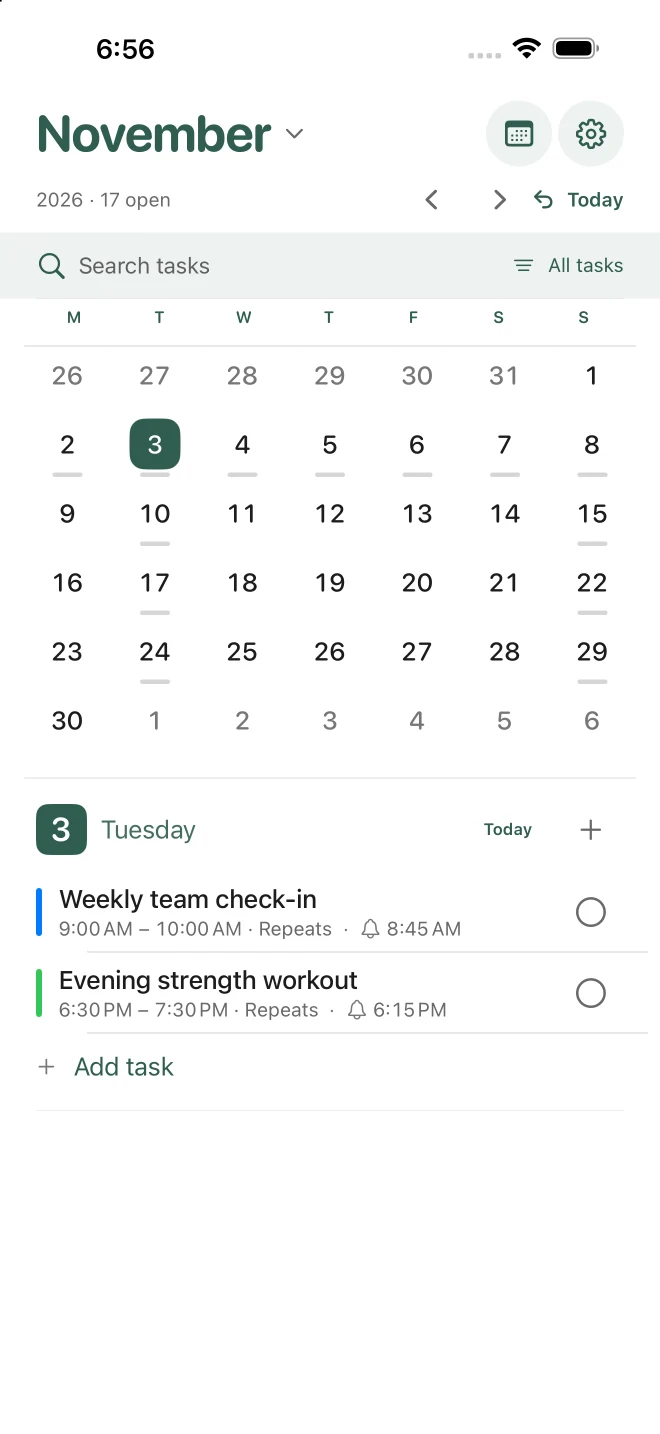
Look ahead on a calendar and tap a date to see what’s planned.
Planning with EverDay
Capture tasks as they come up
Add a task directly under a day or save it in the Inbox until you know when to do it. Add notes, a location, or a link when you need the context later.
Give tasks time on your calendar
Set a start and end time for focused work or add an alert for something you need to remember. Move a task to another day and its alert keeps the same time of day.
Pick up where you left off
Bring unfinished tasks forward to today from the weekly board. If you delete something by mistake, you can recover it from Recently Deleted for 30 days.
Check your plans at a glance
See what’s coming up with Home Screen and Lock Screen widgets. Use Siri or Shortcuts to add or complete tasks.
Free and Pro
EverDay
Free to download
- Weekly board and undated Inbox
- Tasks, time blocks, and reminder alerts
- Manual rollover for unfinished tasks
- Core widgets, Siri, and Shortcuts
EverDay Pro
One-time purchase
- Day and Month views, with your choice of opening view
- Selected Apple Calendar events and individual links to Apple Reminders
- Recurring tasks, subtasks, and automatic rollover
- Today’s Three, workload and overlap indicators, unlimited tags, and all 13 themes
- App Lock with Face ID, Touch ID, or device passcode
Already own Pro? Restore your purchase in EverDay Settings with the Apple Account you used to buy it.
Apple Calendar, Reminders, and iCloud
With Pro, you can show events from selected Apple calendars and edit supported details in EverDay. Link a dated task to Apple Reminders and you can mark it complete in either app. Both connections are optional.
EverDay saves your plans on your iPhone without a separate account. With iCloud enabled, your planner can sync across devices signed in to the same Apple Account.
App Store details
On supported iPhone Duo systems, landscape mode can show the planner and an entry’s details side by side.